CRM Integrations / HubSpot

HubSpot Integration
See the full technology stack behind any company, directly on the company record in HubSpot. One click writes the data to your CRM, bulk enrichment covers your whole database, and automatic enrichment keeps new records up to date.
Overview
The Ful.io app for HubSpot adds a Ful.io Technologies card to your company records. It detects the technologies running on a company's website, including CMS, ecommerce platforms, analytics, hosting, payment processors and more, and writes them to properties on the company record itself. Because the data lives in normal HubSpot properties, you can use it in lists, workflows, filters and reports like any other field.
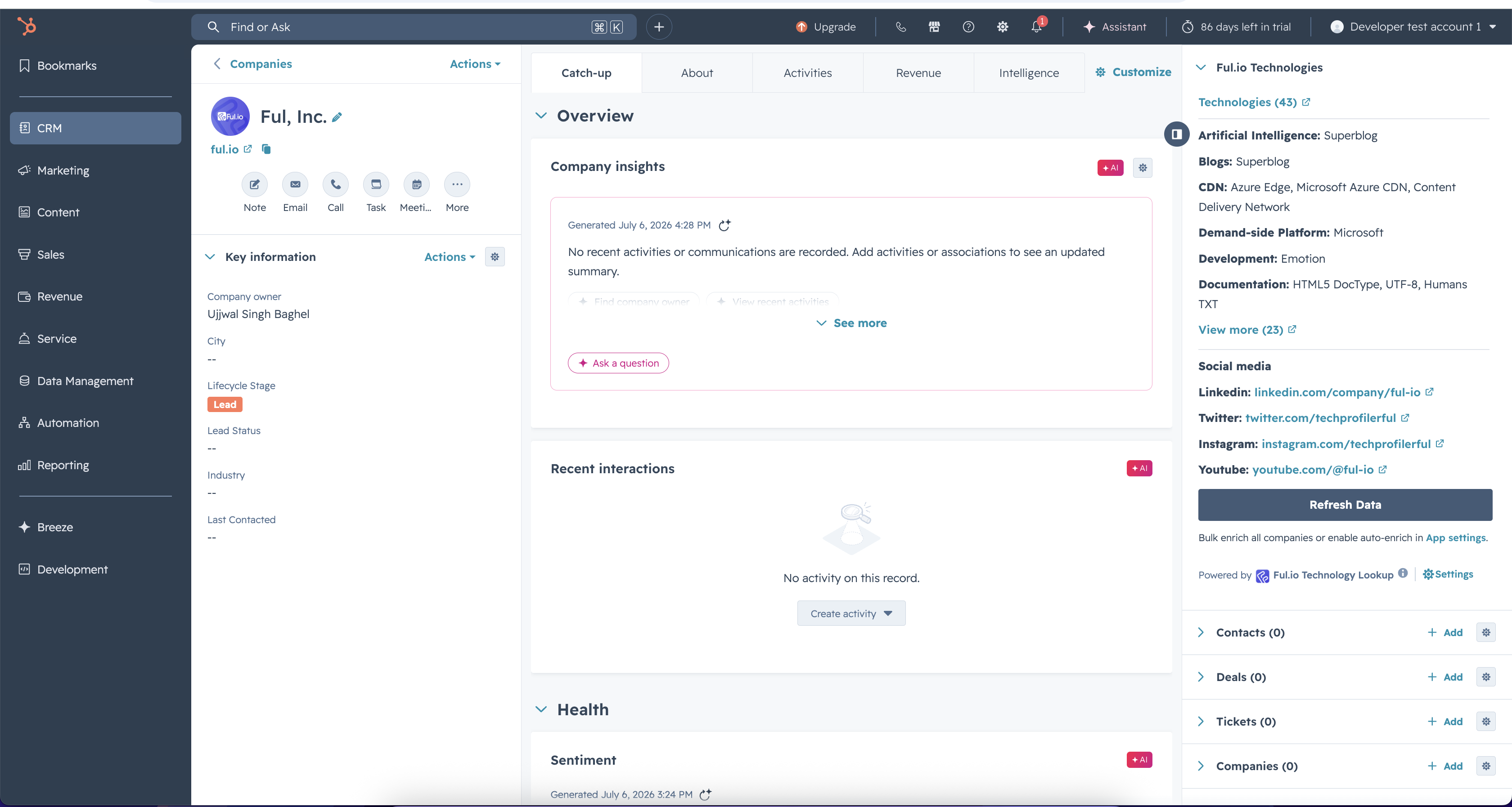
There are three ways to enrich, and you can use all of them together:
- 1
On a single record: open a company and click Enrich Now on the card.
- 2
In bulk: enrich every company that has a domain, from the app settings page.
- 3
Automatically: new companies and domain changes are enriched within about two minutes, if you enable the toggle.
How it works
When a company is enriched, Ful.io scans the company's website domain and writes four properties to the company record:
- 1
Ful.io Technologies: the detected technology stack, grouped by category. - 2
Ful.io Social Links: social profiles found on the website, such as LinkedIn and X. - 3
Ful.io Technology Count: the total number of technologies detected. - 4
Ful.io Last Enriched: the date of the most recent enrichment.
These properties are created automatically the moment you install the app. You do not need to create any fields or configure any mappings yourself. The card reads from these stored properties, so viewing a record never uses credits. Only running an enrichment does. See the full details in the data reference below.
The data belongs to your HubSpot portal. Even if you uninstall the app later, everything already written to your company records stays there.
Requirements
- 1
A Ful.io account on a paid plan. Your plan includes API credits and an API key, both of which this integration uses. See plans and pricing.
- 2
A HubSpot account. Any HubSpot tier works, including free CRM.
- 3
A HubSpot user with permission to install apps, and Super Admin access for the one time card placement step.
Each enriched company uses 1 API credit. Viewing already enriched records is free. Details are in the credits and billing section.
Step 1: Install the app
- 1
Open the Ful.io install link in your browser. If you manage more than one HubSpot account, HubSpot will ask you to choose which one to install into.
- 2
Review the requested permissions and click Connect app. Ful.io asks for read and write access to companies only. It does not request access to your contacts, deals or tickets.
- 3
You will land on a confirmation page that says You're connected! At this moment Ful.io has already created its four properties in your portal automatically.

The confirmation page points you to the next step, which is turning on the card. Click Set up the card now there, or follow Step 2 below.
Step 2: Turn on the card
HubSpot never adds an app's card to your record views automatically. This is a HubSpot platform rule that applies to every app on the marketplace. A Super Admin turns the card on once, and it appears for your whole team.
- 1
In HubSpot, click the settings icon in the top navigation bar.
- 2
In the left sidebar, go to Integrations and then Connected apps.
- 3
Click Ful.io Technology Lookup, then open the App cards tab.
- 4
Click Manage locations on the Ful.io Technologies card.
- 5
Tick the checkbox next to each view where you want the card, then click Save.
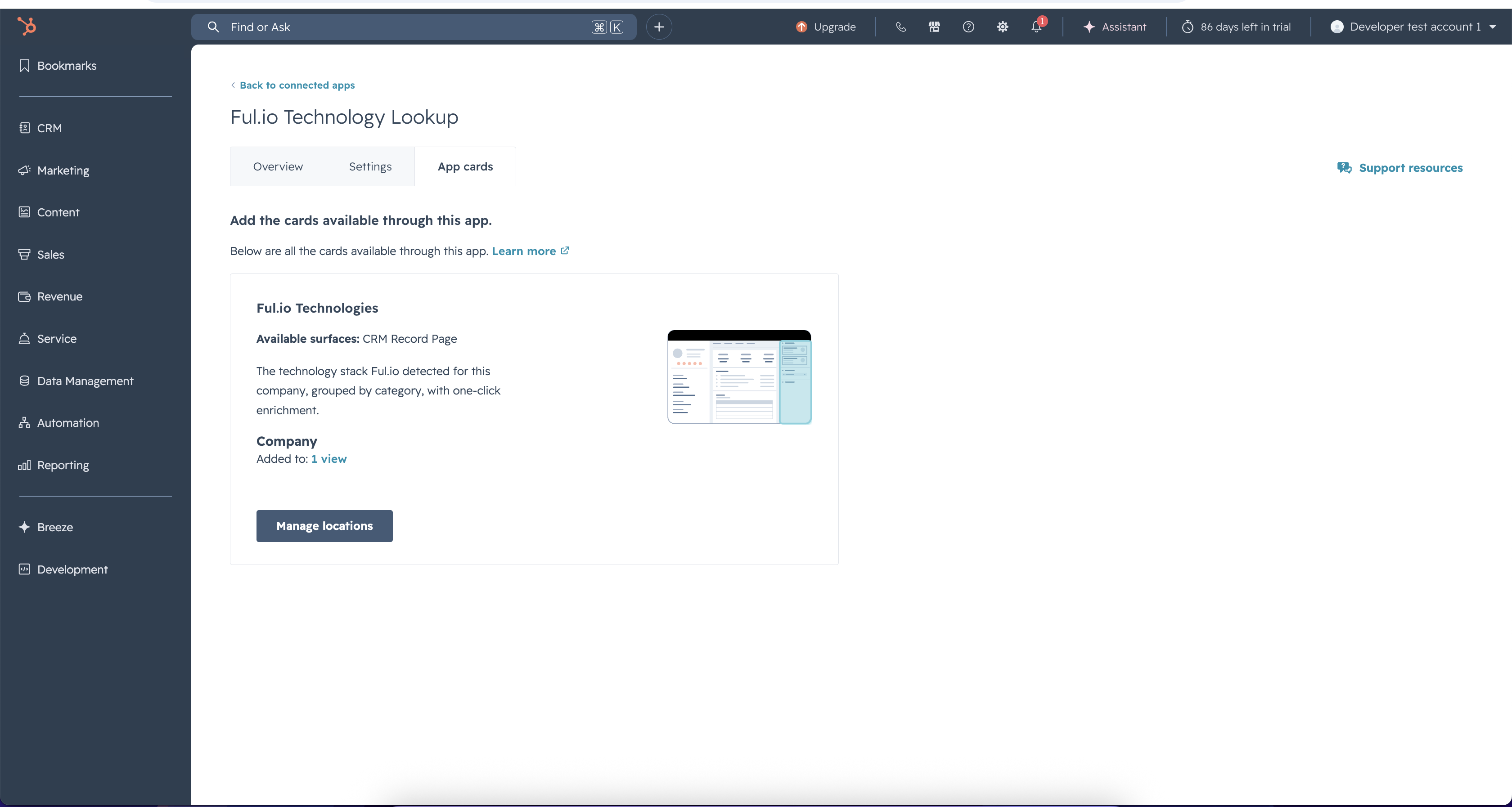
If you skip this step, the app is installed but nothing is visible on your records. This is the single most common setup question, so if you do not see the card, start here.
Step 3: Link your Ful.io account
The first time you open the card it asks for your Ful.io API key. This is how enrichments are matched to your Ful.io account and credit balance. You only do this once per HubSpot portal.
- 1
Log in to Ful.io and open Account, then Security.
- 2
Find the API Key card and copy your key with the copy button.
- 3
Back in HubSpot, open any company record, paste the key into the Ful.io Technologies card, and click Link Account.
- 4
Right after linking, the card asks whether to enable automatic enrichment for new companies. Click Enable auto-enrich to turn it on, or Not now to skip. You can change this anytime on the app settings page; see the automatic enrichment section.
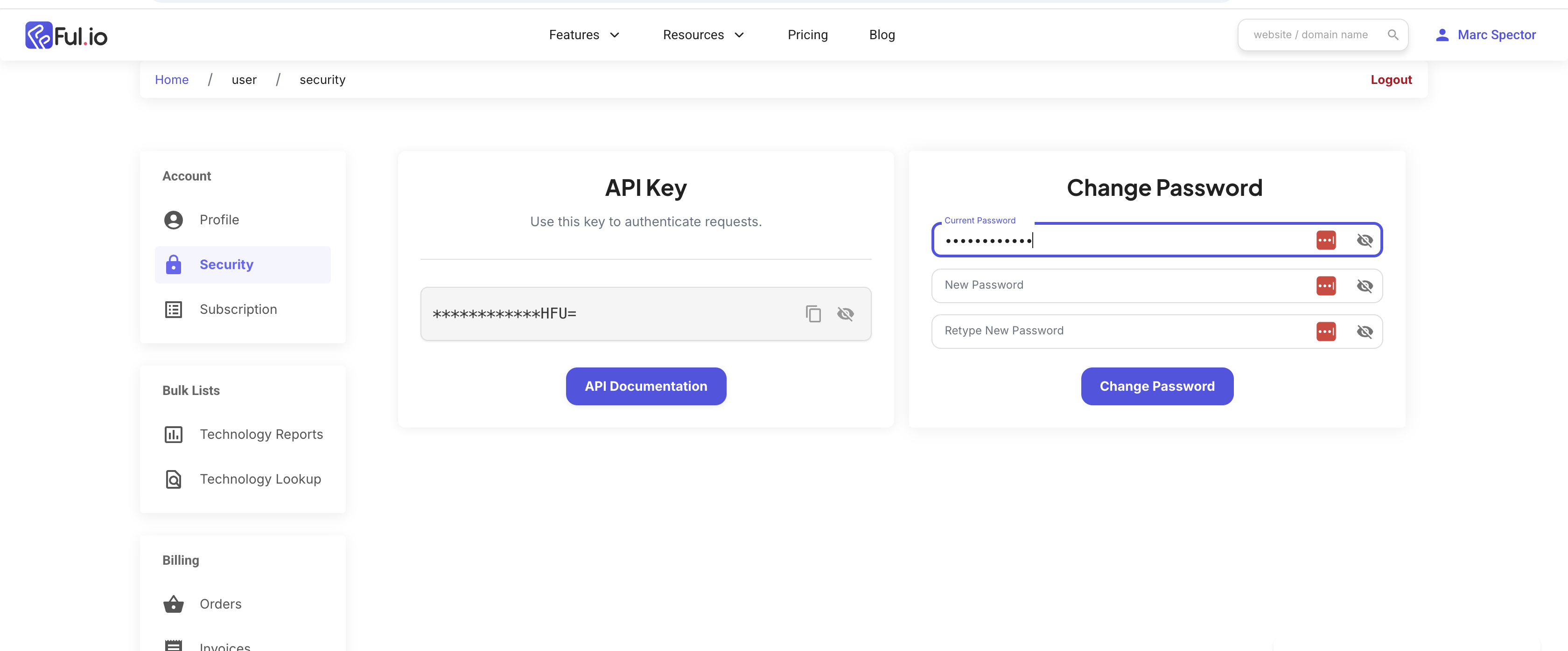
Your API key works like a password for your Ful.io account. Share it only with teammates who should be able to spend your API credits.
Step 4: Enrich a company
- 1
Open a company record that has a value in HubSpot's standard
Company domain nameproperty. The domain is what Ful.io scans, so the button stays disabled without one. - 2
Click Enrich Now on the Ful.io Technologies card. A scan usually takes a few seconds, up to about half a minute for a slow website.
- 3
The card updates in place: technologies grouped by category, a technology count that links to the full report on ful.io, and any social profiles found.
After the first enrichment the button label changes to Refresh Data. Refreshing runs a new scan and uses a new credit, so use it when you think a company's stack has changed. The stored data itself never expires.
Bulk enrichment
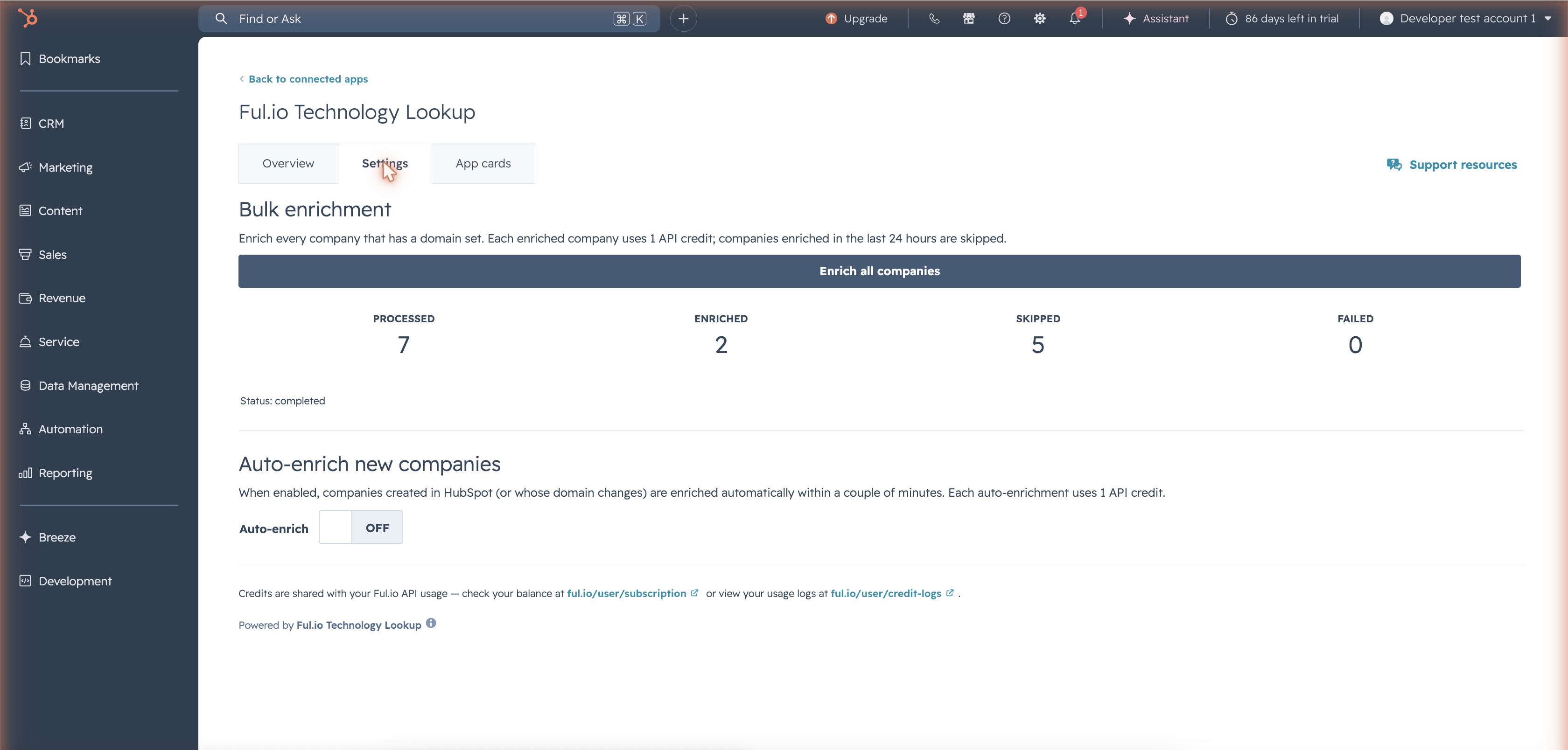
Bulk enrichment processes every company in your portal that has a domain, without you clicking through records one by one. It runs from the app settings page inside HubSpot.
- 1
Open the app settings page: either click App settings at the bottom of any Ful.io Technologies card, or go to Settings, Integrations, Connected apps, Ful.io Technology Lookup.
- 2
Click Enrich all companies.
- 3
Watch the progress counters update: processed, enriched, skipped and failed. You can leave the page and come back, the job keeps running in the background.
What bulk enrichment skips
- 1
Companies without a domain. These are counted as skipped, never charged.
- 2
Companies enriched within the last 24 hours. This protects you from paying twice if you run bulk enrichment back to back.
Companies whose last enrichment is older than 24 hours are not skipped: a bulk run refreshes them with a new scan and bills 1 credit each, exactly like clicking Refresh Data on the record. Run bulk enrichment when you want the whole portal brought up to date, not as a routine habit.
If your credits run out mid run
The job stops cleanly and reports how far it got. Everything enriched up to that point is kept, and you are never charged for companies that were not enriched. Top up or wait for your monthly reset, then run it again; the 24 hour skip rule means already processed companies will not be charged a second time.
Automatic enrichment
With auto enrich on, Ful.io watches for two events in your portal: a new company being created, and a company's domain being set or changed. When either happens, the company is enriched automatically, usually within one to two minutes.
There are two ways to enable it:
- 1
The quick way: click Enable auto-enrich on the prompt that appears right after you link your Ful.io account.
- 2
Anytime later: open the app settings page, as in the bulk enrichment section above, and turn on the Auto-enrich toggle.
Auto enrich is off by default and each automatic enrichment uses 1 API credit, the same as a manual one. The same 24 hour rule applies, so a company that was just enriched will not be enriched again immediately, even if its record changes. You can turn the toggle off at any time.
Ful.io only reacts to new companies and domain changes. Its own property writes never trigger another enrichment, so auto enrich cannot loop or drain credits by itself.
Managing your linked account
Your API key is only a billing pointer: it tells Ful.io which account pays for the next enrichment. The technology data itself is written onto your own HubSpot company records and belongs to your portal. Because of that, every action on this page is safe to take: none of them can delete enriched data from your records.
Switch to a different account
Open the app settings page and scroll to Linked account. The section shows a masked hint of the currently linked email so you can tell whose credits are in use. Paste the new API key and click Update API key. From that moment, enrichments bill to the new account; everything already written to your records stays exactly as it is.
Remove the API key
Next to the update button is a Remove API key button. Use it when you want to stop billing without uninstalling anything, for example when the teammate who linked their account leaves, or you are rotating keys. Removing the key does exactly three things, and nothing else:
- 1
The portal is unlinked from the Ful.io account, so no further enrichments can be charged.
- 2
Auto-enrich is switched off, so nothing keeps running in the background without a key behind it.
- 3
The card and settings page return to asking for an API key, ready for whoever links next.
All enriched data stays on your company records and remains fully usable in lists, workflows, views and reports. Removing the key pauses future enrichment; it never rewinds past enrichment.
Linking again later
Paste a key, the same one or a different one, and everything resumes. You do not need to re-enrich anything: the data on your records never left. The 24 hour skip rule reads the ful_last_enriched date stored on each record, not the key that produced it, so a key change cannot cause accidental double billing for recently enriched companies.
One thing to know before pressing the bulk button after a break: any company last enriched more than 24 hours ago is refreshed and billed again, 1 credit each. That is the normal refresh behaviour, not a penalty for relinking. If you only want new companies enriched going forward, turn on auto-enrich and skip the bulk run.
What survives what
A quick reference for what each action changes, and what it can never touch:
| Action | Enriched data on records | Account link | Auto-enrich |
|---|---|---|---|
| Update API key | Stays | Moves to the new account | Keeps its setting |
| Remove API key | Stays | Removed | Turned off |
| Uninstall the app | Stays, permanently | Removed | Turned off |
| Reinstall the app | Stays | Asks for a key again | Off until you enable it |
The first column never changes because the data does not live on Ful.io's side at all: once written, the four properties are ordinary HubSpot properties owned by your portal, like any field your team fills in by hand.
Credits and billing
The integration uses the same API credits as the Ful.io developer API. There is no separate HubSpot charge.
| Action | Cost |
|---|---|
| Viewing the card on any record | Free |
| Enriching a company (single, bulk or auto) | 1 API credit |
| Refreshing an already enriched company | 1 API credit |
| Skipped companies (no domain, or enriched in the last 24 hours) | Free |
| Failed enrichments | Free, credits are only charged on success |
Check your remaining credits on your subscription page and see every individual charge on your credit logs page. Each HubSpot enrichment appears there with the domain it scanned.
Data reference
Ful.io creates these four properties in the Company information group of your portal. They are standard HubSpot properties, so you can use them anywhere HubSpot lets you use a property: list filters, workflow triggers, views, exports and reports.
| Property | Type | Contents |
|---|---|---|
ful_technologies | Multi-line text | One line per category, for example: CMS: WordPress |
ful_social_links | Multi-line text | One line per profile, for example: linkedin: https://linkedin.com/company/example |
ful_tech_count | Number | Total technologies detected in the last scan |
ful_last_enriched | Date | Date of the most recent successful enrichment |
Example: build a segment of WordPress companies
Create a list with the filter ful_technologies contains WordPress and every enriched company running WordPress lands in it, ready for a targeted campaign or a workflow trigger.
Troubleshooting
I installed the app but there is no card on my records
The card has not been added to your views yet. Follow Step 2. This needs a Super Admin and only has to be done once.
The card says my API key is invalid
Copy the key again from your security page and make sure nothing is cut off at either end. API keys are only issued on paid plans, so if your Ful.io account is on the free tier you will need to upgrade first.
The Enrich Now button is disabled
The company record has no value in the Company domain name property. Add the company's website domain, for example example.com, and the button activates.
I get an insufficient credits message
Your API credits for the current period are used up. Check your balance on the subscription page. Credits reset with your billing cycle, or you can upgrade your plan for a larger monthly allowance.
The card says the connection expired
This happens if the app's access to your portal was revoked, usually after an uninstall. Reinstall the app with the install link. All previously written data is untouched. The reinstall starts fresh, so the card asks for an API key again; see managing your linked account.
What happens if I uninstall?
The card and settings page disappear and no further enrichments run. All data already written to your company records stays in your portal permanently; uninstalling never deletes anything. If you reinstall later, the app deliberately starts clean: it asks for an API key again and auto-enrich starts off. That way whoever reinstalls always chooses, knowingly, which account pays; nobody inherits a billing link they did not set up. Linking takes under a minute, see Step 3.
Is my API key stored in HubSpot?
No. When you link, Ful.io looks up the account that owns the key and stores a reference to that account on Ful.io's own servers, next to the encrypted connection tokens. The key itself is not saved on the connection and is never written into your HubSpot portal. The ful_ properties on your records contain technology data only.
How do I change or remove the linked API key?
Open the app settings page and scroll to Linked account. Paste a new key and click Update API key to switch billing to another account, or click Remove API key to unlink the portal entirely. Neither action touches the data already on your records. Full details, including exactly what each action changes, are in managing your linked account.
Who can install the app?
Installing any HubSpot app requires HubSpot's App Marketplace access permission. Super Admins have it by default and can grant it to other users. Turning on the card, covered in Step 2, always needs a Super Admin. If you do not have these permissions, ask your HubSpot administrator to run the install; everything after that works for every user in the portal.
Can I use Ful.io privately, without adding data to our shared CRM?
Not through this integration. The properties it writes live on your portal's shared company records, so they are visible to every user who can view companies. This is how every CRM enrichment app works, HubSpot has no per-user data on shared records. If you want technology data just for yourself, use the Ful.io browser extension or run lookups directly on ful.io. Both are personal and touch nothing in your CRM.
Still stuck?
Write to us at support@ful.io or through the contact page. Include your portal ID if you can find it, but a description of what you see is enough.
Ready to try it?
Install the Ful.io app for HubSpot and enrich your first company in under five minutes.